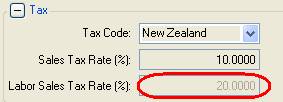
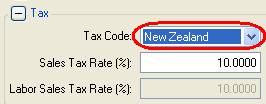
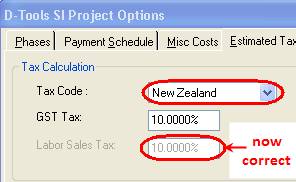
New Zealand Tax Setup bug in SI5Applies toNew projects created when Tax Code = New Zealand in the Navigator setup. This bug has simple workarounds for both existing and new projects. Note that this is not a new bug in SI5.2; it exists in all versions of SI5. SummaryWhen using New Zealand taxes, new projects are assigned a different tax rate on labor, based on the value that appears in the Labor Sales Tax rate field in Navigator > Setup > Taxes.
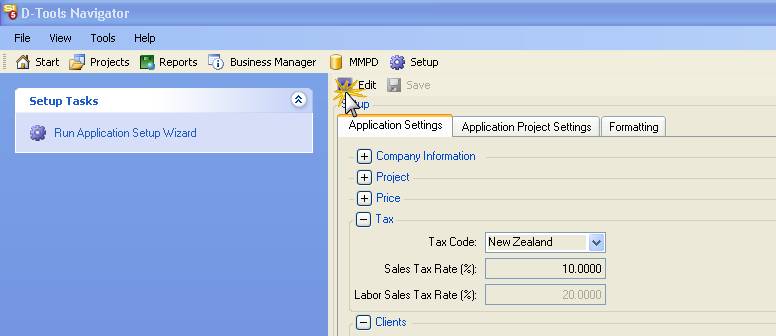
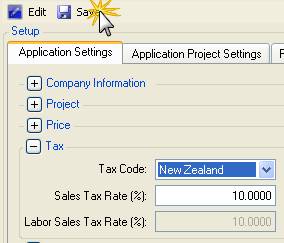
This is incorrect, since NZ taxes are the same for equipment and labor, which is why the second value is greyed out/not editable. ExampleIn the example above, when a new project is created, all equipment will be taxed at a rate of 10%, while labor will be charged 20%. SolutionFuture projects1. Go to Navigator > Setup > Application Settings > Tax and click Edit
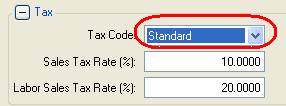
2. Change the Tax Code to Standard
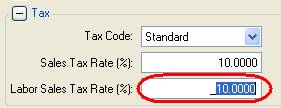
3. Change the Labor Sales Tax Rate to be identical to the Sales Tax Rate
4. Change the Tax Code back to New Zealand
5. Hit Save to save your changes
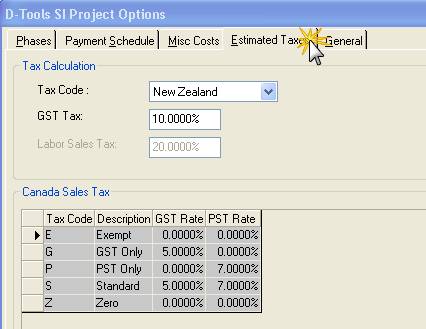
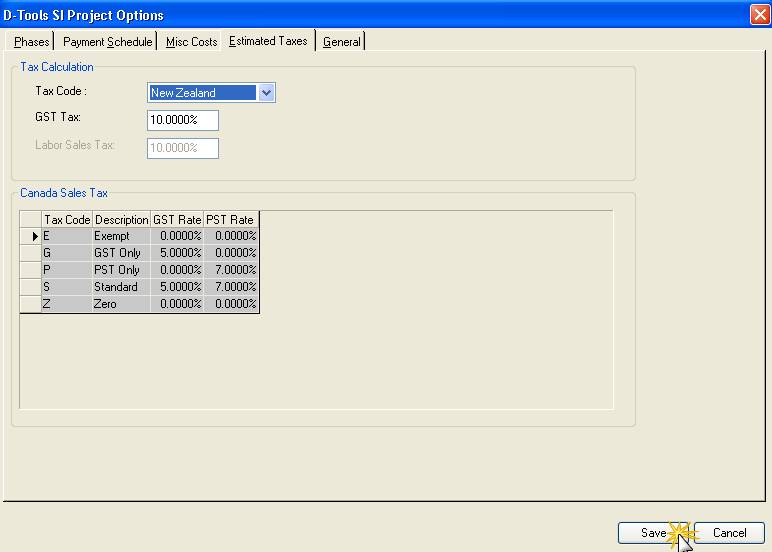
From this point forward, any new projects you create will use the correct tax rates for both equipment and labor Existing projectsTo correct a project that has already been created, follow these steps: 1. Open the project and go to D-Tools > Options > Estimated Taxes
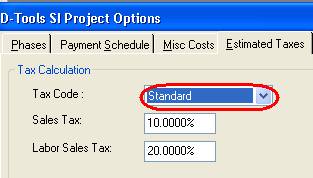
2. Set the Tax Code temporarily to Standard
3. Set the Tax Code back to New Zealand. You’ll see that the labor sales tax has reset itself.
4. Hit Save to save your changes
At this point, your project will calculate taxes correctly. Don’t forget to save the project or you’ll have to do this again when your reopen. Long-term SolutionThis is a bug that will be fixed in our next product release. Forum DiscussionSee this forum thread for discussion of this issue: http://www.d-tools.us/showthread.php?t=2198 |